
Tutorial: Wallet Key Recovery
Learn how to recover your wallet keys if Tetrapolar goes offline.

This tutorial covers how to recover your seed phrase from a Simple wallet backup file (.tpkey) without any access to Tetrapolar's servers. It uses the Tetrapolar Key Recovery Tool — a single offline HTML file that decrypts your backup entirely on your own machine.
You will need two things: your encrypted backup file (.tpkey, downloaded during wallet setup) and the recovery password you chose when creating the wallet.
Note: This process applies only to Simple keys. Simple setups protect a 24-word phrase with one strong password. If you chose Advanced setup, you already hold your recovery phrase on paper — there is nothing to recover; import it directly into any compatible Bitcoin wallet. For restoring deal wallet funds once you have your seed, see this article.
How the two key setups differ
Upon wallet key creation, you will be presented with two ooptions: Simple and Advanced. Both setups are fully self-custodial — private keys are generated on your device, never leave it in plaintext, and are never visible to Tetrapolar's servers. The difference is the backup:
- Simple: your device generates a 24-word recovery phrase (256 bits of entropy) inside an isolated web worker, encrypts it on-device with Argon2id key derivation and AES-256-GCM, and uploads only the encrypted blob. You also download the encrypted backup as a
.tpkeyfile. Recovery on a new device means logging in and entering your password — the backup decrypts locally in your browser. - Advanced: your device generates a 12-word phrase (128 bits) — or you import your own — you write it down, and your keys are encrypted and stored only in that browser's local vault. Nothing is uploaded. Recovery means entering your written phrase.
The trade-off is one-sided responsibility: Simple puts all security on the password; Advanced puts it on the physical phrase. In both cases the cryptography underneath is identical, signing happens inside isolated web workers, and neither Tetrapolar nor anyone else can move or recover your funds.
Prerequisites
- You set up your Tetrapolar wallet using the Simple key option.
- You have the
.tpkeybackup file (or the JSON envelope downloaded from your account). - You remember the recovery password exactly — it is case-sensitive, with no reset or recovery option. If you have lost it, your keys are unrecoverable by anyone, including Tetrapolar.
- A desktop browser (Chrome, Firefox, Safari, Edge). Low-memory mobile browsers may fail at higher Argon2id memory settings, so use a desktop machine.
- For maximum safety: a machine you can take offline while recovering.
Step 1: Download the recovery tool
On an internet-connected machine — not necessarily the one you will recover on — download tetrapolar-key-recovery.html from the repository.
The deliverable is one self-contained HTML file. All cryptography — Argon2id WASM, XChaCha20-Poly1305, AES-256-GCM, the BIP39 wordlist — is inlined. There are no network calls, no fonts or analytics, and a strict Content-Security-Policy blocks any outbound request.
If you want extra assurance: after download, transfer the file to an air-gapped machine (a laptop that never connects to the internet) using a USB stick.
Step 2: Go offline
Disconnect your recovery machine from the internet. Turn off Wi-Fi and unplug the ethernet cable.
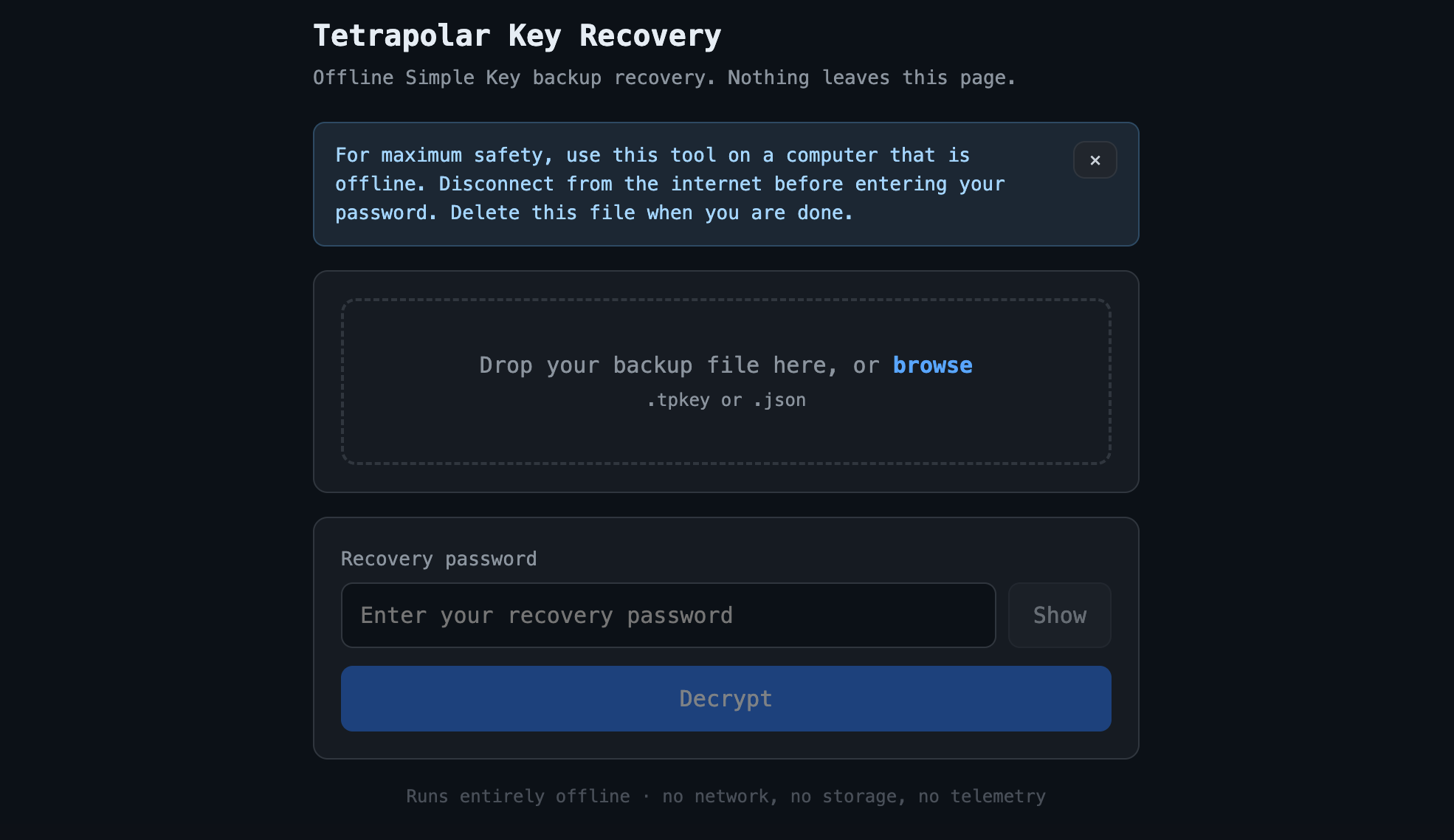
Open tetrapolar-key-recovery.html by double-clicking it — running from file:// is fine. You should see the recovery interface: a file drop zone at the top, a password field below it, and a footer noting that everything runs locally.
You can verify the network is idle by opening your browser's DevTools → Network tab: with the CSP in place, it will show zero requests for the entire session.
Step 3: Load your backup file
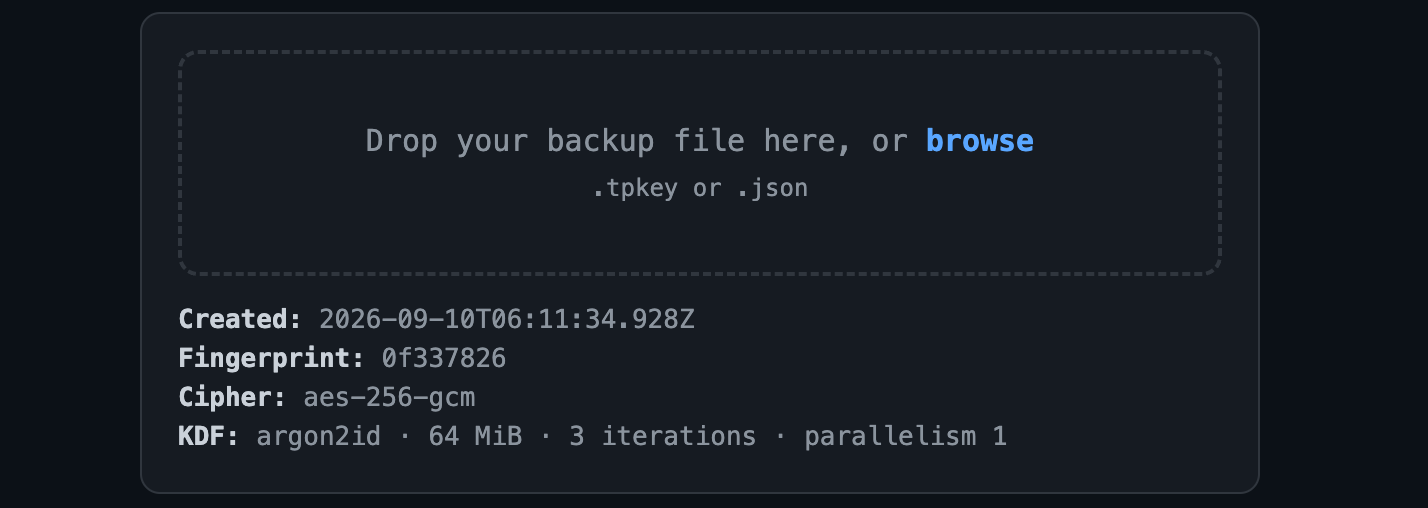
Drag your .tpkey backup file into the drop zone, or click browse to select it.
The tool will read the file and display its metadata: format, version, creation date, key fingerprint, cipher name, and KDF parameters. Confirm these details match what you expect.
If the file is not a valid Tetrapolar backup, the tool will reject it with an error — it will not attempt to decrypt arbitrary files.
Step 4: Enter your recovery password
Type your recovery password into the Recovery password field. Use the Show button to confirm spelling if needed — remember, there is no "forgot password" and a single wrong character will fail.
Click Decrypt. The progress indicator will show "Deriving key… this can take 10–30 seconds." This delay is deliberate: Argon2id runs at 64–256 MiB of memory-hard work, which makes offline guessing attacks expensive.
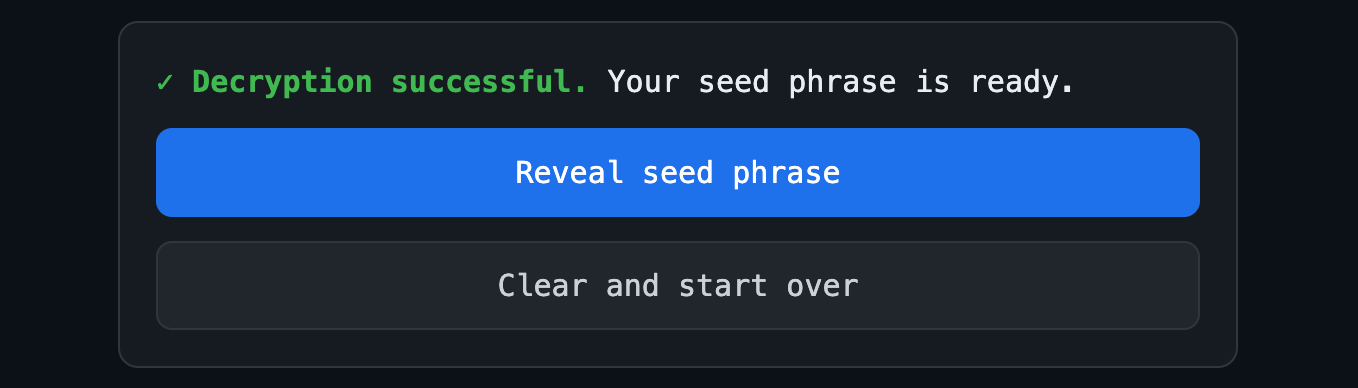
If the password is correct, the card will advance to show a green "✓ Decryption successful. Your seed phrase is ready." If it fails, you will see a generic error: "Incorrect password or corrupted backup." The tool deliberately does not say which one failed — re-enter the password carefully, or try a different backup file if you have more than one.
Step 5: Reveal and write down your seed phrase
Click Reveal seed phrase. Your 24-word phrase will appear in a numbered grid.
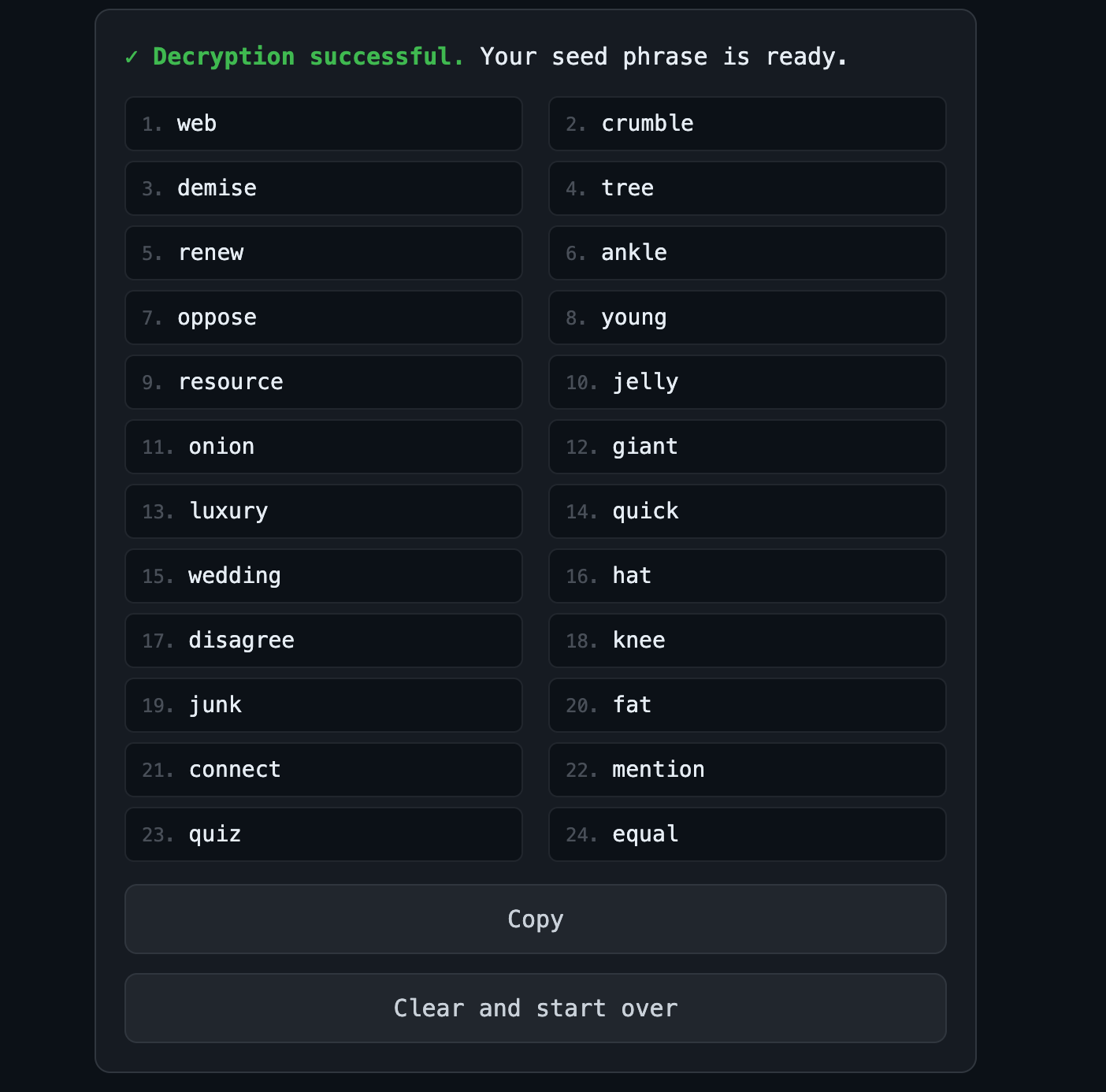
Write the words down on paper, in order, and check them twice. Do not take a screenshot, do not save them to cloud notes, and do not email them to yourself. The Copy button is available if you need to move the phrase into a hardware wallet or an offline password manager on the same machine.
Step 6: Wipe and close
When you are done, click Clear and start over — and then close the browser tab entirely. The tool overwrites the derived key and plaintext byte arrays in memory, clears the DOM, and wipes the clipboard. This is not cosmetic: the tool is designed so that closing the page leaves no recoverable trace.
You can now delete tetrapolar-key-recovery.html from the machine, and securely delete the scratch copy of the .tpkey file if you copied it to this device.
Verifying you recovered the right key
The strongest check is the master fingerprint shown in the backup metadata (Step 3): it should match the Key Fingerprint displayed in your Tetrapolar account under Settings → Wallet Keys. If they match, the phrase you recovered is the one your original device derived.
If you want to double-check the seed independently before using it to spend, import the 24 words into a standard BIP39-compatible wallet as a watch-only or fresh key, and confirm the fingerprint matches before you expose the phrase on any signing device. We recommend Nunchuk wallet.
For restoring deal wallet funds with your recovered seed and your deal backup file, follow our tutorial on recovering a deal wallet in Nunchuk — that process is identical once your seed phrase is in hand.
Quick reminders
- Your password has no reset. A forgotten password means the backup is permanently unreadable. Use a password manager.
- The tool is not a backup. Your seed phrase, once revealed, is the only real backup. Keep the written words offline and separate from the
.tpkeyfile. - Simple backups live twice — an encrypted copy sits in your account and another is downloadable as the
.tpkeyfile — so losing the website doesn't lock you out. The only thing that can lock you out is losing the password. - This process is for Simple keys only. Advanced users hold their phrase on paper from day one; if you chose Advanced and lost both the phrase and the device, the funds are unrecoverable by design.
- Zero network means zero leaks. If you see any network activity in DevTools while using this file, stop — you are using the wrong file.